
Table of Contents
Introduction #
Classroom Mode in MooWoodle is designed for situations where a single person, such as a teacher, manager, or training coordinator, wants to purchase a course for multiple learners at once. Instead of buying individual enrollments, they can purchase a group of seats (quantities) in one order.
This feature makes it easy to manage training sessions, workshops, or classroom-style learning directly through your WooCommerce store.
How to Enable Classroom Mode #
- Go to your WordPress dashboard.
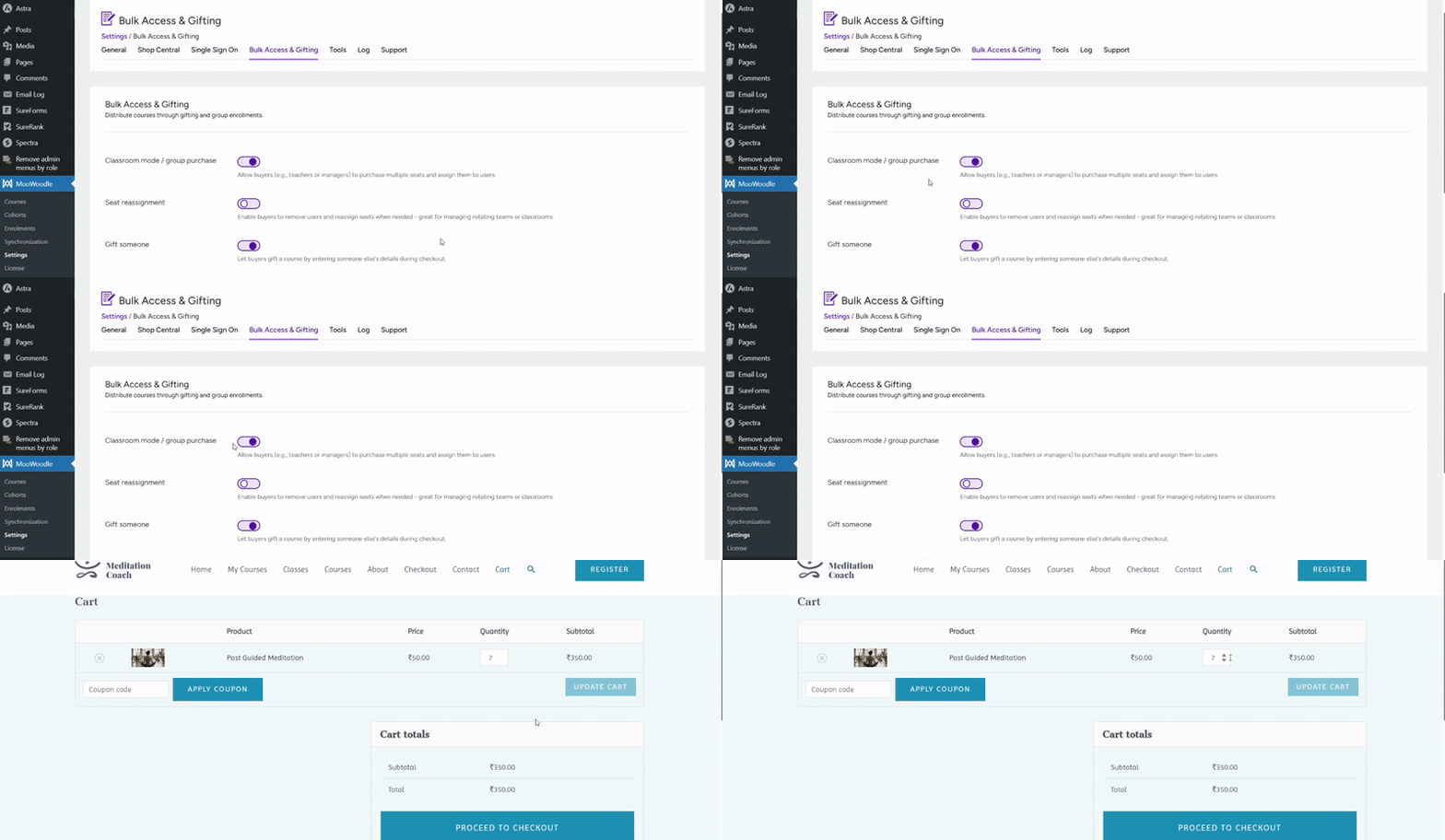
- Navigate to MooWoodle → Settings → Bulk Access & Gifting.
- Enable the option “Classroom mode / Group purchase”.

How Classroom Mode Works #
- Customers can purchase multiple seats for a single course.
- The purchaser becomes the Classroom Owner.
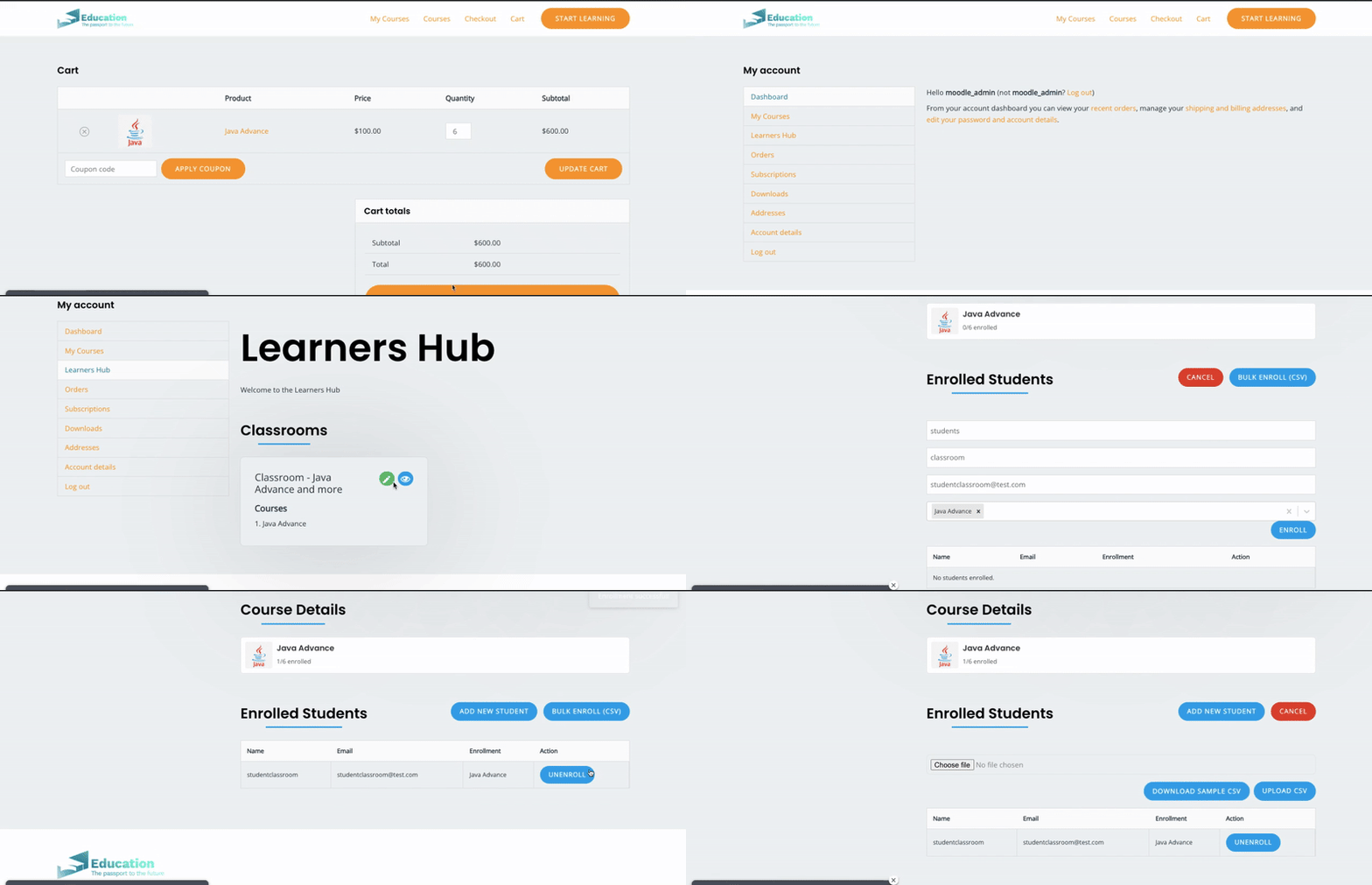
- After the order is completed, the Classroom Owner gains access to a Classroom Management panel in their account.
- From this panel, they can allocate purchased seats to learners using two methods:
1. Manual Enrollment #
- The Classroom Owner can add learners one by one.
- For each learner, they need to enter details such as:
- Name
- Email address (used to create a Moodle account if one does not already exist)
- Select Courses
- Once added, the learner will automatically receive course access in Moodle.
- This method is best suited for small groups or when only a few learners need to be enrolled.
2. CSV Bulk Enrollment #
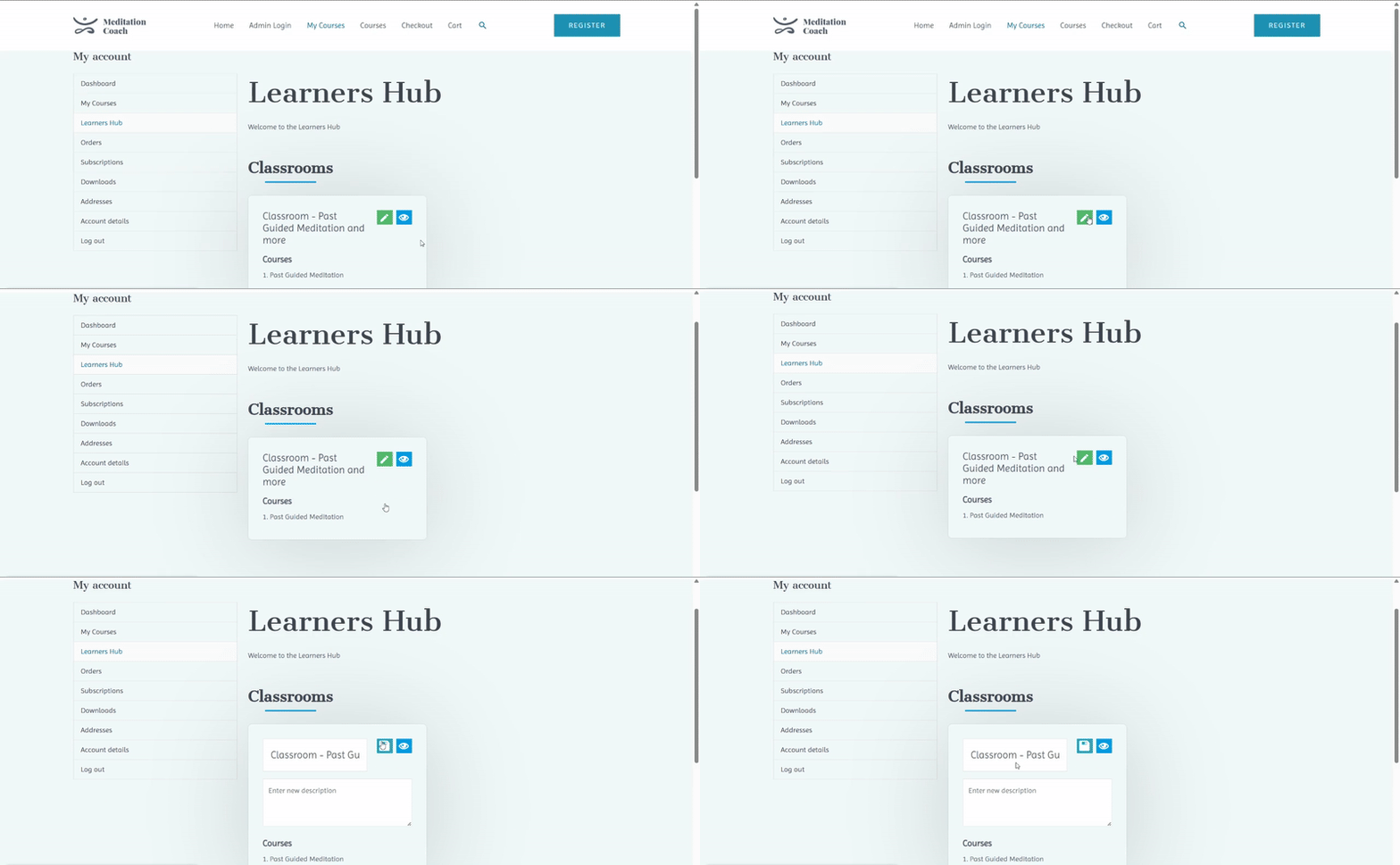
- The Classroom Owner can upload a CSV file to enroll multiple learners at once.
- The CSV file should contain the required learner details, typically:
- Name
- Email address
- After uploading, all learners listed in the file will be enrolled simultaneously.
- This method is ideal for larger groups, such as corporate training batches or classroom enrollments.