Gain access to jaw-dropping premium features, by upgrading your MooWoodle LMS solution to the MooWoodle Pro LMS solution. With the MooWoodle Pro solution, you can unlock impressive features like subscription support, synced login, bundled courses, and many other high-tech features.
Unlock premium features and elevate your experience by upgrading to MooWoodle Pro! With our Pro version, you can enjoy:-
Convenient Single Sign-On for Moodle™ and WordPress Login.
Create steady income through course subscriptions.
Increase earnings by offering courses in groups, variations, or individually.
Prior to setting up MooWoodle Pro, ensure that you have configured MooWoodle correctly. If you haven’t, please refer to our documentation and complete the setup process. Then all you have to do is configure the MooWoodle Moodle Connect plugin.
In order to connect MooWoodle Pro with your Moodle site, you need to download and install the MooWoodle Connect plugin in your Moodle environment from here .
When you install MooWoodle Connect, you need to navigate to Plugins >> Authentication >> MooWoodle Connect. Here you will get the following settings :
To facilitate the Single Sign-On process, you will need to create a secret key. The secret key is similar to a password, but it must be alphanumeric and cannot contain any special characters or spaces. For example, a valid secret key would be “1a2b3c4d5e6f7g8”. Otherwise single sign-on wouldn’t work.
Auto-generating unique codes will help you to create the token as per your need.
SSO Secret Key : If you haven’t added the SSO key yet, please follow these steps to obtain it:
Go to your WordPress site.
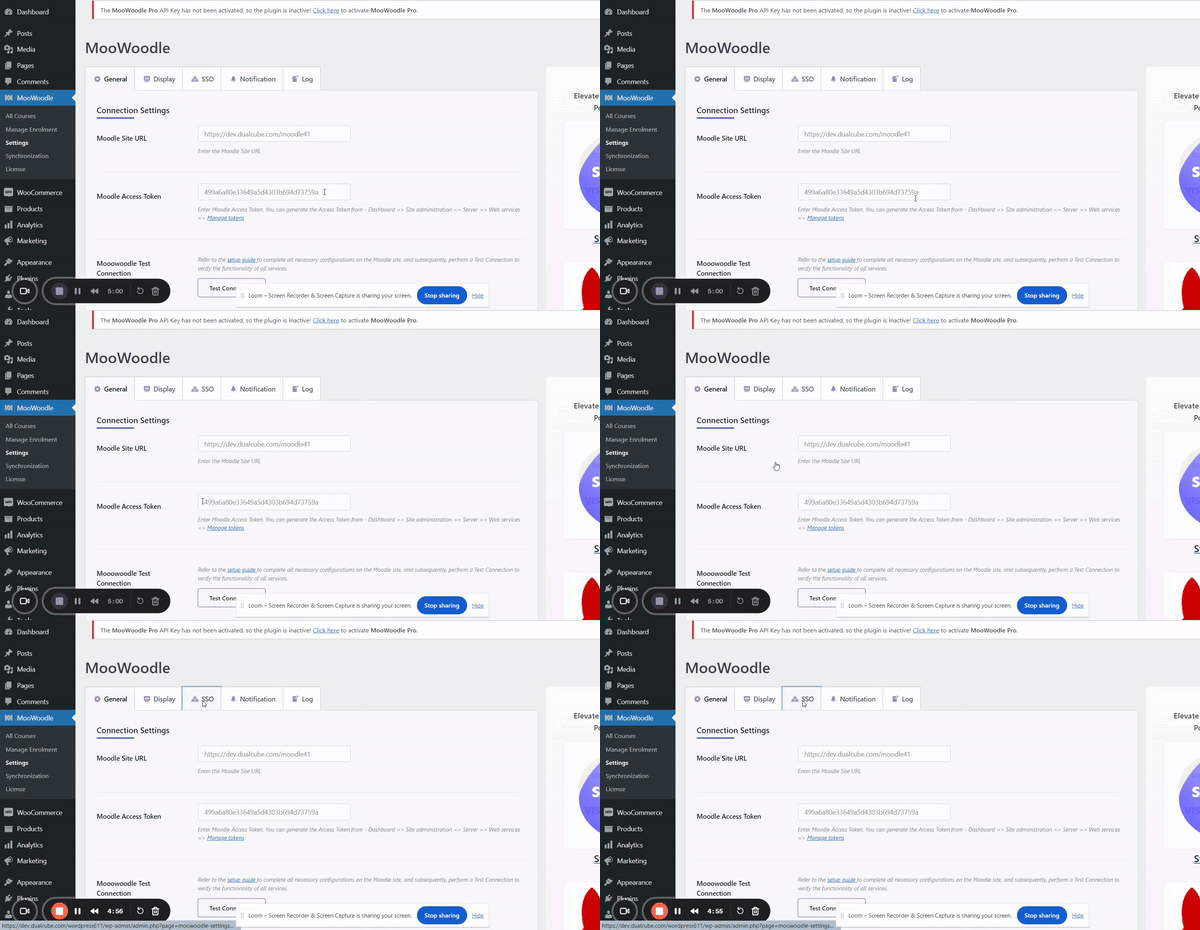
Navigate to MooWoodle >> Settings >> SSO.
Copy the SSO key from there and paste it here.
WordPress Site URL : You need to add the WordPress site URL , where you are selling your courses.
Set the time limit : The duration, in minutes, for which the login link from the WordPress site remains active for Moodle site login is the period after which the SSO link will no longer work.
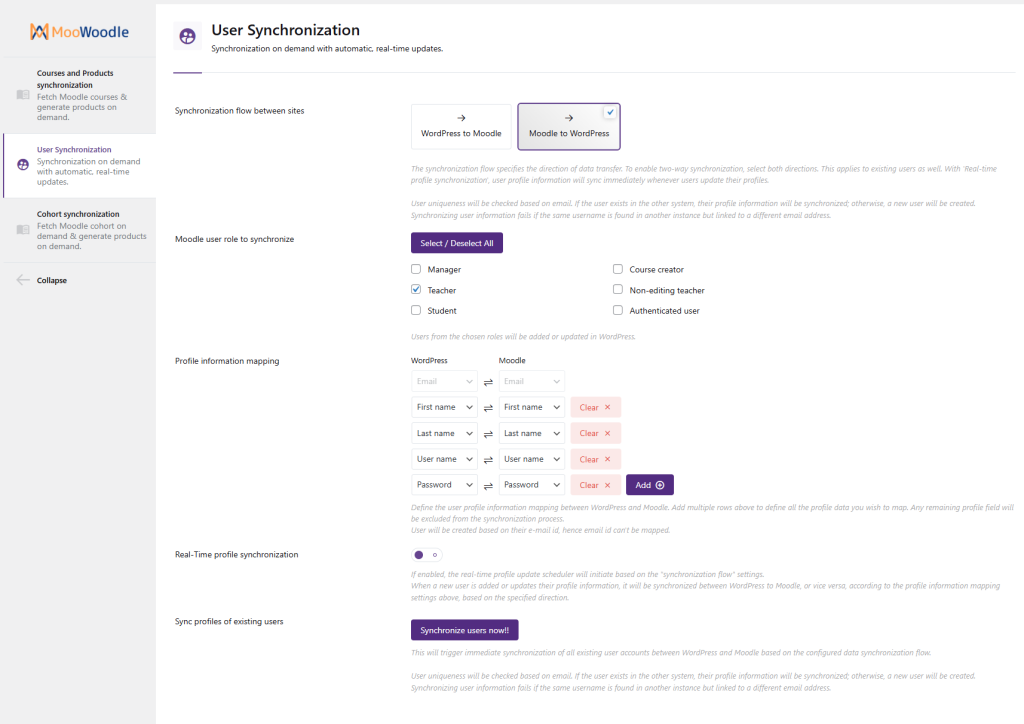
Synchronization flow between sites: The synchronization flow specifies the direction of data transfer.
– WordPress to Moodle & Moodle to WordPress.
To enable two-way synchronization, select both directions. This applies to existing users as well. With ‘Real-time profile synchronization’, WordPress user role to synchronize
WordPress and Moodle user role to synchronize: This settings lets admin select which users will be synched within the role
Profile information mapping : Select which profile data will be synchronized between WordPress to Moodle. You can choose which user profile data (i.e.first name, last name, user name and password) will synchronize when users are transferred between Moodle and WordPress. Thus, if you have chosen to sync only the Full Name field, any new user creations or updates to existing orders will result in the synchronization of their full name between WordPress and Moodle.
Real-Time profile synchronization : This feature enables automatic user synchronization between Moodle and WordPress. When a new user is added on one platform, our system instantly syncs their profile to the other, sending email notifications for swift and informed user updates. This ensures a smooth and unified experience across both platforms.
Sync profiles of existing users : This will trigger immediate synchronization of all existing user accounts between WordPress and Moodle based on the configured data synchronization flow.
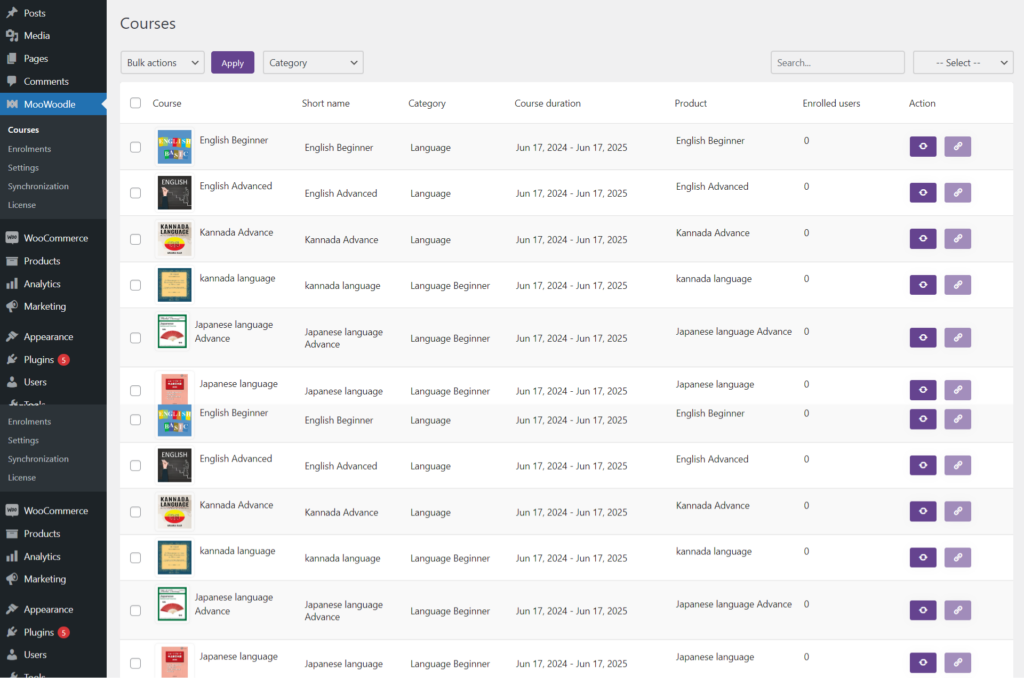
The All Courses section gives the admin a list of all courses in the site. Along with all the features added by our free plugin, our MooWoodle pro adds a section called Action.
Action gives admin the option to Sync the following data regarding courses.
Sync Course Data: If you’ve made changes to courses in Moodle, this option allows the admin to update the same data for that course in WordPress. However, it won’t update the data for the product.
Sync Course Data & Update Product : This action on the other hand will update data for for course and it’s product in WordPress.
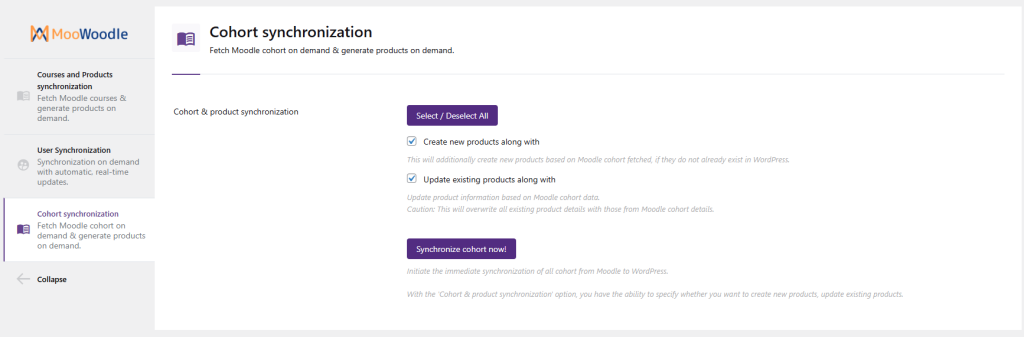
MooWoodle Pro offers advanced synchronization tools to ensure seamless integration between your Moodle LMS and WordPress WooCommerce site. Below is a complete guide to the three main synchronization sections available in the MooWoodle Pro plugin.
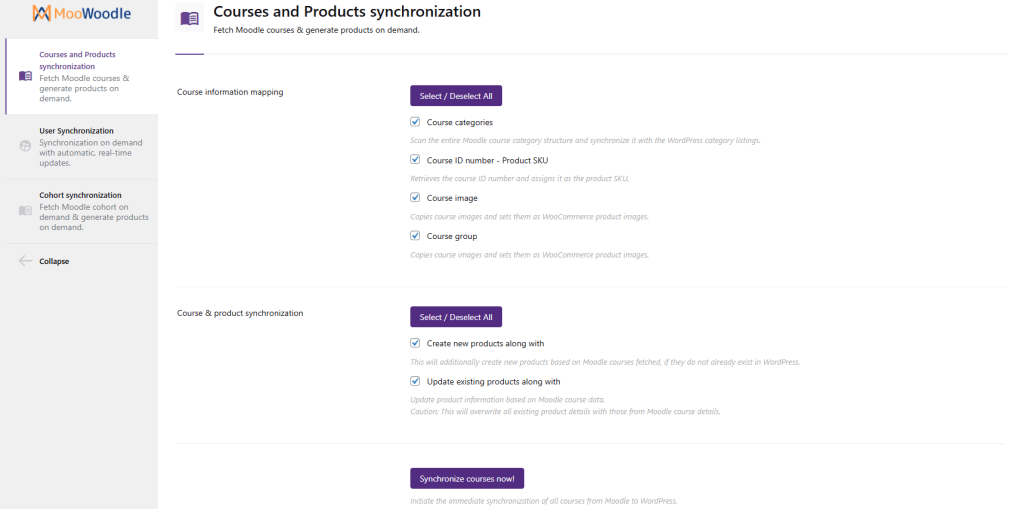
Keep your Moodle course catalog synced with your WordPress product listings. Control how product data is fetched, created, or updated using the following options:
Create New Products Along With Automatically create new WooCommerce products based on Moodle courses that do not already exist in WordPress.
Update Existing Products Along With Update existing WooCommerce products with Moodle course information. ⚠️ Note: This will overwrite existing product details.
Create New Products Along With Automatically generate new WooCommerce products for each Moodle cohort that does not already exist in WordPress.
Update Existing Products Along With Sync cohort details with existing WooCommerce products. ⚠️ Note: This will overwrite existing product details with data from the Moodle cohort.