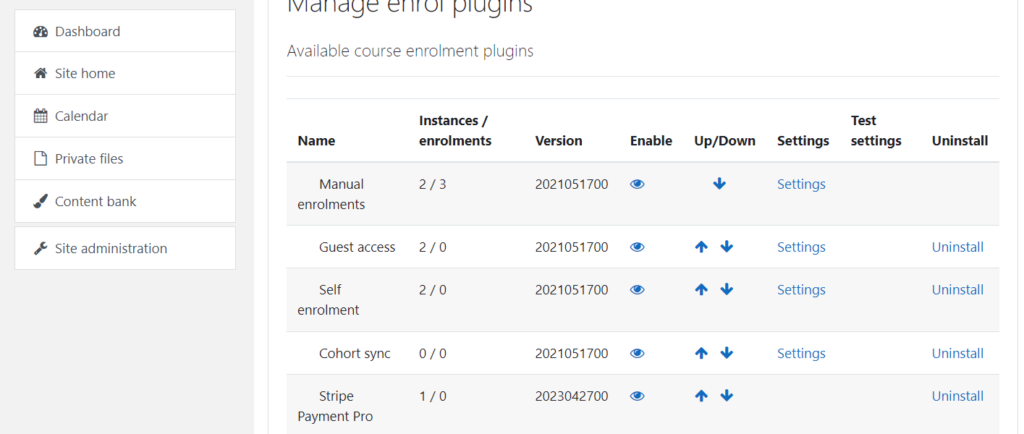
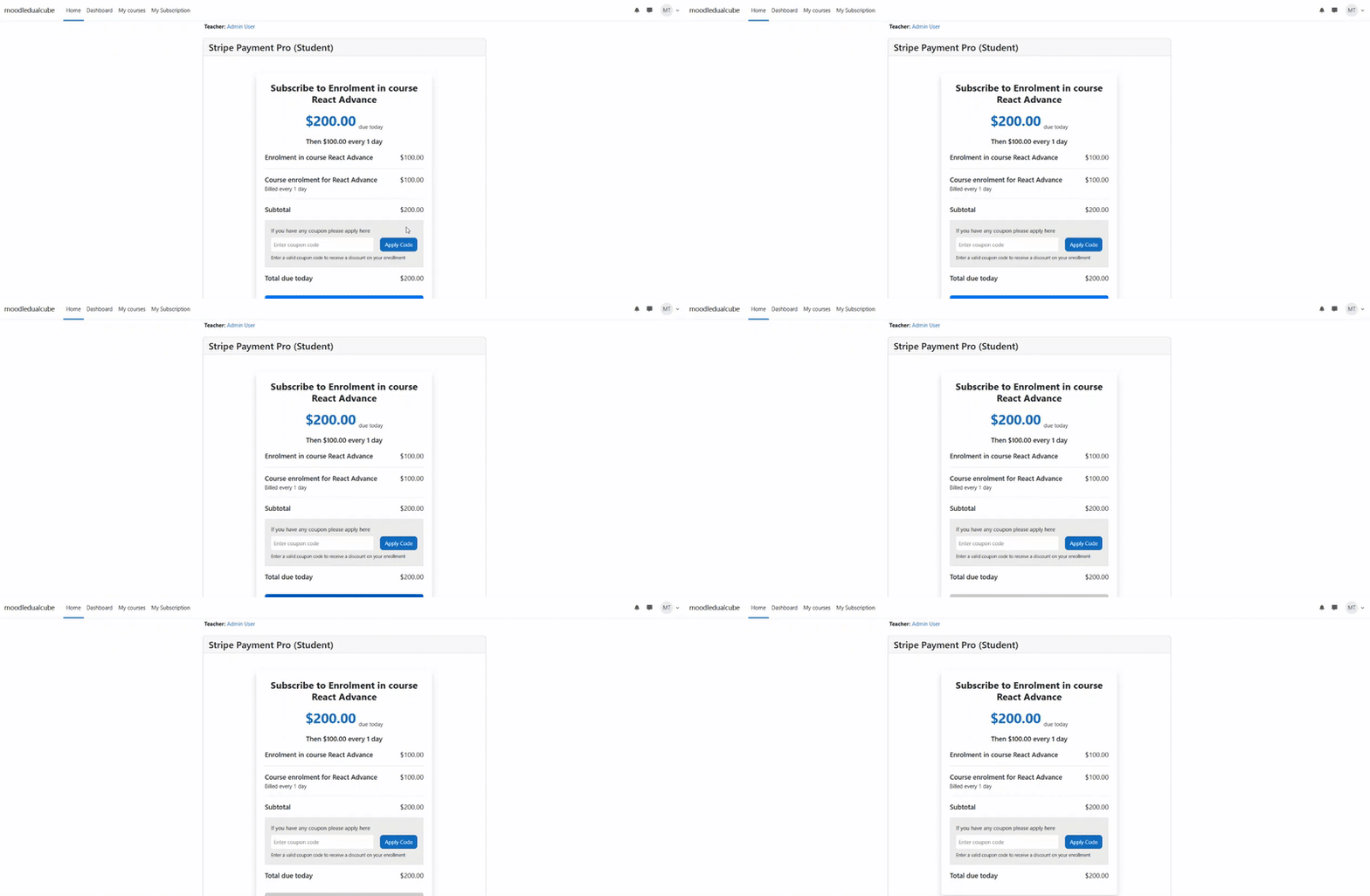
Stripe Pro is an advanced payment gateway that allows you to offer subscription payments to students. You can also access premium features such as free trial, sign-up fee, and so on with this solution. To top it off, Stripe is one of the most trusted and secure payment gateways around.
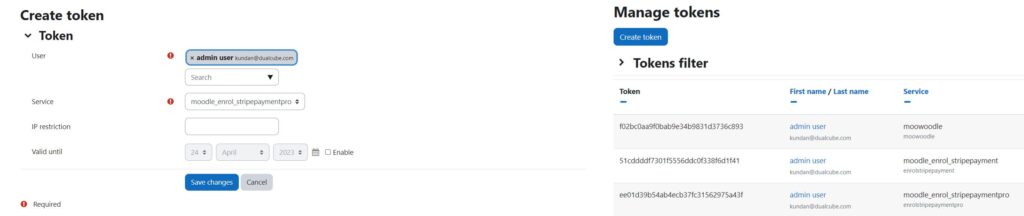
User Token : In order to get the token, goto Web services >> Manage tokens >> Create token for moodle_enrollment_stripepaymentpro. Once the token is generated, add this into settings.
With Stripe Pro, you can now create and manage coupons directly from your Moodle site. Follow these steps to add a coupon:
Navigate to Coupon Management: Go to Site Administrator > Enrollment > Stripe Payment Pro – Coupon Management > Generate Coupon.
Provide the Required Coupon Details:
Coupon Name: Enter the name of the coupon. This will appear on receipts and invoices.
Discount Type: Choose whether the coupon offers a discount as a fixed amount or a percentage off the subscription.
Discount Amount: Specify the exact amount or percentage of the discount.
Coupon Currency: Select the currency for the coupon.
Duration: When creating a coupon in Stripe Pro, you can specify how long the discount will be valid by choosing from three duration options:
Forever: The coupon applies to all invoices indefinitely, including recurring orders.
Once: The coupon applies only to the first invoice.
Multiple Months: Set the duration for which the discount is valid. For example, a 50% off coupon with a 4-month duration will apply to all invoices within those 4 months. If a customer uses this coupon for a yearly subscription during this period, the 50% discount will cover the entire year.
Coupon Expiry: Define how long the coupon will be valid. For example, a coupon set to last forever for a customer will continue to provide discounts indefinitely, but new customers won’t be able to use it after the expiration date.
Coupon for Specific Courses: Select the products (courses) that are eligible for the discount. The coupon will only apply to the selected products. If a subscription doesn’t include any eligible products, the coupon won’t be applied. Note: Only products with Stripe as the payment gateway will be listed here.
Every student can easily manage their subscriptions from their account.
View Subscriptions: Students can check the list of all their active subscriptions.
Next Payment Date: Each subscription displays the upcoming payment date for clarity.
Cancel Subscription: Students can cancel their subscription at any time.
Important: If a student cancels a subscription, they will still have access to the enrolled courses until the end of the subscription period they have already paid for. After this period ends (when the next billing cycle starts), access to those courses will automatically be removed.